From the Dashboard screen, you can view your Notifications and Approvals.
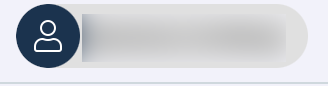
If you need to take some action, you will receive a notification. You can customize where notifications appear on your screen in your User Settings. Click the Profile icon in the top right of the screen:
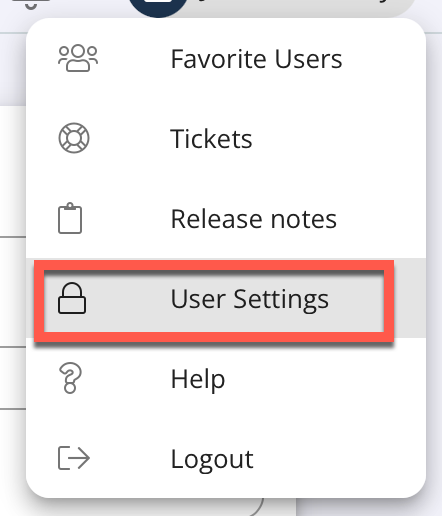
Click User Settings:
Scroll down to the Notification Location section. You can see your selected preference here:

To change this, click Edit:

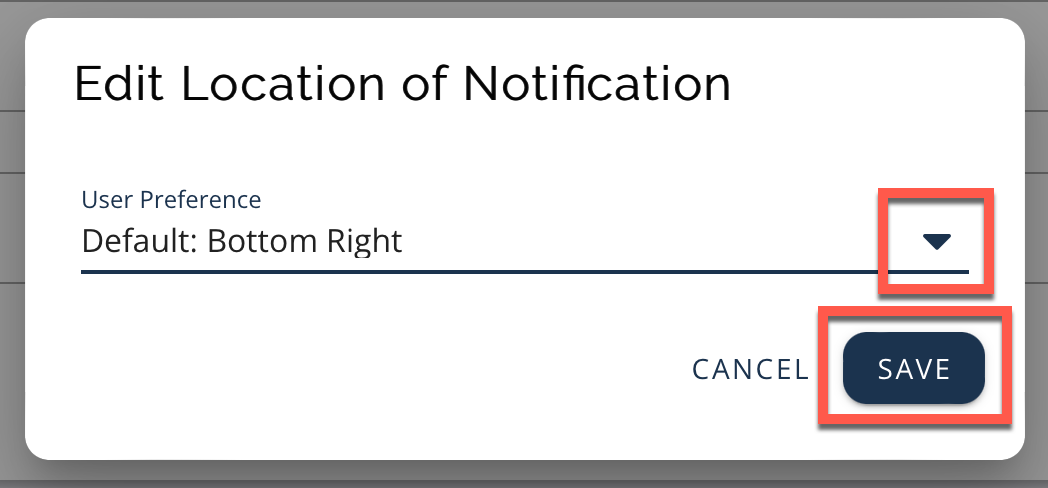
Select your preference from the drop-down menu and click Save:
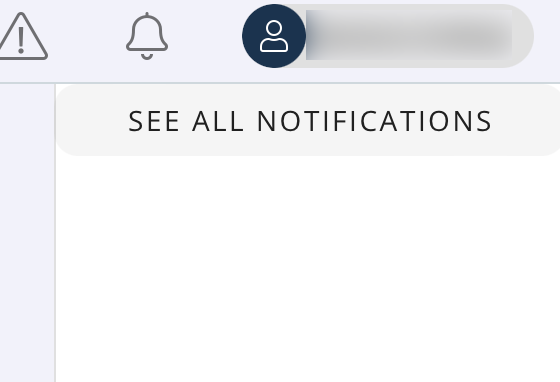
These will remain in your notifications box until you take the required action or acknowledge that you have read them. You can easily see your notifications using the Notifications icon at the top right of the Dashboard screen. Click the icon to the left of the Profile icon:

Notifications display in a box on the right:
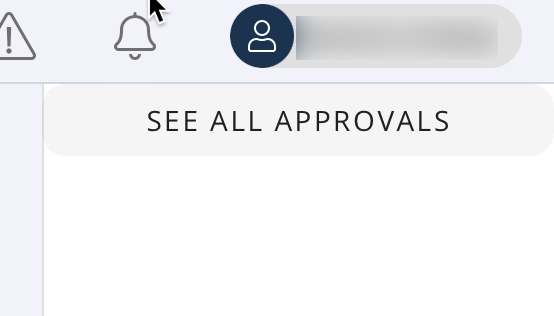
If an order needs your approval for some reason, you will receive a notification. You can easily see your approval requests using the Approvals icon at the top right of the Dashboard screen. Click the Approvals icon to the left of the Profile icon:

Orders needing approval and Recently Resolved Approvals display in a box on the right:
See Also: Dashboard Introduction