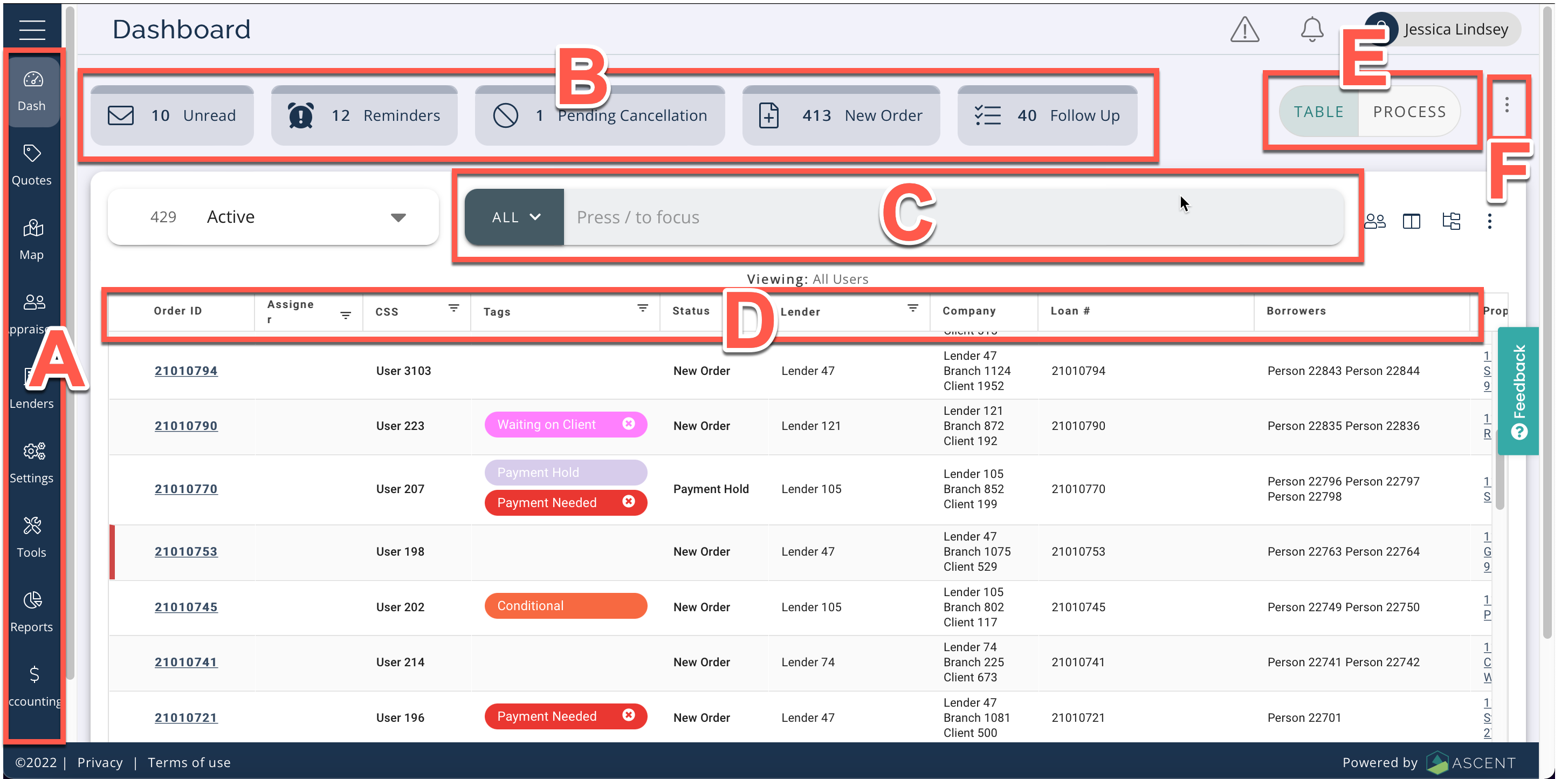
Upon login you will see your Dashboard screen:
Navigate to different screens using the Nav bar on the left (A).
At the top of the screen, you can use various tabs for easy access to different information (B). For example, you can see Unread messages, Reminders, Pending Cancellation, New Order and Follow Up.
There is a Search bar near the top (C). You can also filter using the Status Filter drop-down to the left of the Search bar.
In the center of the screen, you will see all a list of orders called the Order Table. You can filter the orders by several criteria (D). Each column can be moved and organized by clicking and dragging them in the order you would like them viewed. To view an order, select the Order ID. Click the Columns icon next to the Search bar to select which columns display.
In the top right corner, you can select Table or Process (E). Table view is the default. Process gives you the ability to quickly accomplish tasks. Click the three dot menu to the right of the Search bar to export your orders to an excel spreadsheet or save the table layout you set up.
If you are an admin, click the three dot menu below the Profile icon to select the type of Dashboard that displays (F).
See Also: Filtering, Dashboard Queue Tabs, Process Queues, Order Table, Viewing User Orders, Customizing and Saving Order Table Layout, Search, Notifications and Approvals, Switching Dashboard Views (Admin)