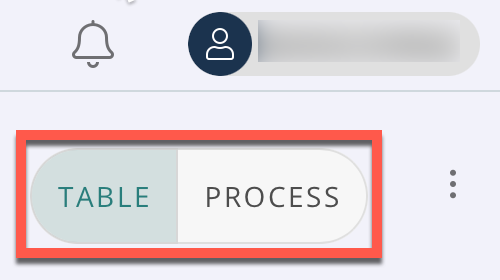
On the Dashboard screen, you can select Table view or Process view using the selector below the Profile icon:
Table view is the default (Order Table and Dashboard Introduction). However, Process view is great for completing your needed tasks.
Click Process. Select the type of Queue Tab you would like to utilize. See Dashboard Queue Tabs for a description of each tab and subtab. To see the next order, click Load Order:

The next order displays. The order will look different depending on the type of Process Queue you are using.
To add a note to this order:

1. Click the Client, Internal or Appraiser radio button to choose who the note is for.
2. Enter your note in the field that says "Start Typing":
3. Optionally, click CC Email and enter the email below to CC someone on your message. Click the drop-down arrow and select the recipient from the list or manually type another email address in the Carbon Copy Emails field:
4. Optionally, click the Tag icon to add tags:
5. When you are done, click + Add Note.
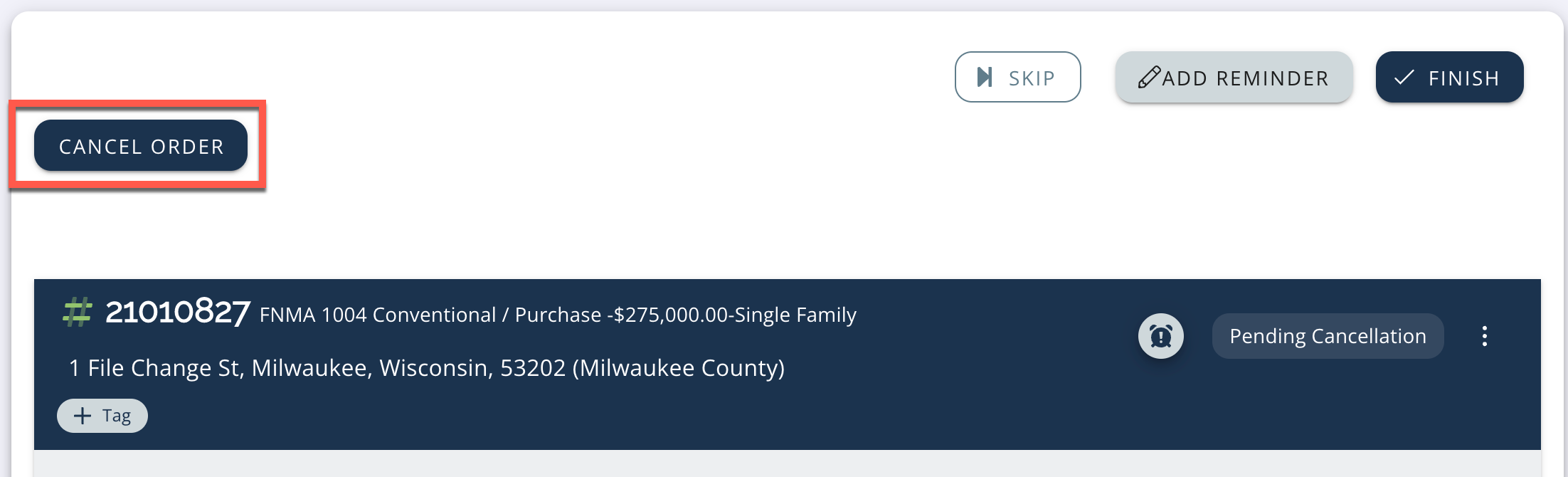
Orders from the Pending Cancellation queue display a Cancel Order button at the top, above the order information. To cancel the order, click this button: