
The Dashboard screen is designed to help you both view orders and accomplish tasks that are assigned to you. One of the best ways to navigate your tasks and orders is by using the Dashboard Queue Tabs:
The tab options change based on the type of Dashboard you are viewing (depending on your role). When you select a tab, Queue Sub-tabs display:

Dashboard Queue Sub-tabs break down orders and tasks even further for easy navigation and increased efficiency. Optionally, follow the Process Queues workflow to easily work through one order after another.
See the Queue Tab options below:
From the Admin view, you will see Unread, Reminders, Pending Cancellation, New Order, and Follow Up:

Unread: Displays orders with unread messages.
Reminders: Displays orders for which you set a reminder.
Pending Cancellation: Displays orders that are pending cancellation.
New Order: Displays your new orders.
Follow Up: Displays orders that need some sort of follow up. These orders are populated based off of certain tags.
When you click some tabs, you can optionally select a sub-tab to limit your search even further.
Click the Unread tab. Optionally, select orders with Critical Comments or Normal Unread messages:

Click the Reminders tab. Optionally, you can select your Upcoming Reminders:

Click the New Order tab. Optionally, you can select Not Reviewed, Conditional Acceptance, Declined or Payment Hold to narrow down your search:

Click the Follow Up tab. Optionally, you can select Appraiser Late, Appraiser Due, Rushes, Not Scheduled, Past Acceptance, or 72 Hours to narrow down your search:

72 Hours: Displays orders that have not been touched for 72 hours.
From the Assignment view, you will see All, New Order, Assigned, Unread, Reminders, Hold, and 72 Hours:

72 Hours queue displays orders that have not been touched for 72 hours.
From the CSS view you will see Unread, Reminders, Pending Cancellation, and Follow Up. See the Admin View section above for descriptions of how these queue tabs are used:

From the Quality view, you will see QC Review, QC Unread, QC Follow Up, UW Request, Ready for Review, Payment Hold and Escalated:

QC Review: Displays orders that need to be reviewed by QC.
QC Unread: Displays orders in QC status with unread notes.
QC Follow Up: Displays orders that need some sort of follow up. These orders are populated based off of certain tags.
UW Request: Displays orders with a request for underwriting.
Ready for Review: Displays orders that are completed and ready for review.
Payment Hold: Displays orders that are on hold until payment is received from the client.
Escalated: Displays orders that have been escalated to management.
If you are a manager, you can click ROV below the Profile icon to see orders submitted for reconsideration of value:
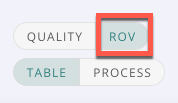
The ROV tabs are ROV Unread, ROV Followup, ROV Requests, and ROV Reviews:

See Also: Dashboard Introduction, Process Queues