
There are two main ways to search for orders: the Search bar on the Dashboard screen or the Search screen on the left Nav bar.
You can search for an order using the Search bar near the top of the Dashboard screen:
Click All to expand the drop-down menu:
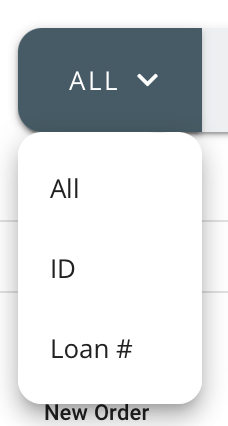
Optionally, you can search by All, order ID or Loan #.
While using the Search bar, the Queue Tabs will be disabled. The Search bar searches for similar items as well in case of typos.
Click the Search option on the left Nav bar:
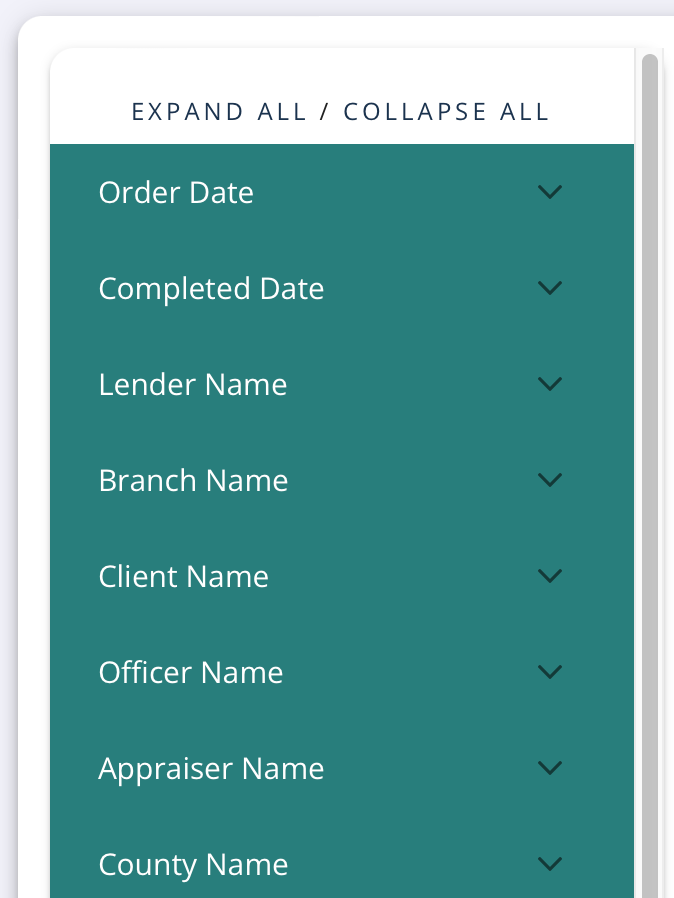
On the Search screen, use any of the Advanced Search criteria on the left side bar to search for orders:
When you select a search filter, an orange box displays at the top showing the criteria it is Currently Filtering for:

Important Note: When you select an Advanced Search filter, only the orders meeting that criterion will display in the panel. For exmple, if you select Accepted orders from the Status filter, only your orders with an accepted status will display. If you add additonal filters, only orders that meet ALL criteria will display.
You can also use the Search bar:

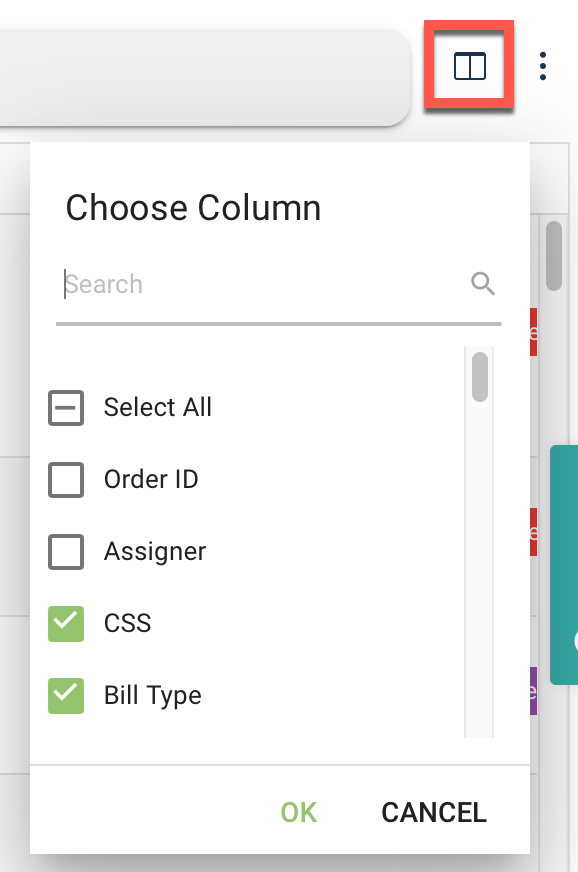
Use the Choose Columns icon to filter which order information displays:
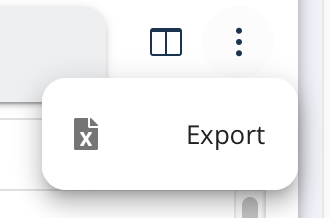
Use the three dot menu to Export the orders displayed:
Click an order ID to view an order (see Order Table and Order Screen).