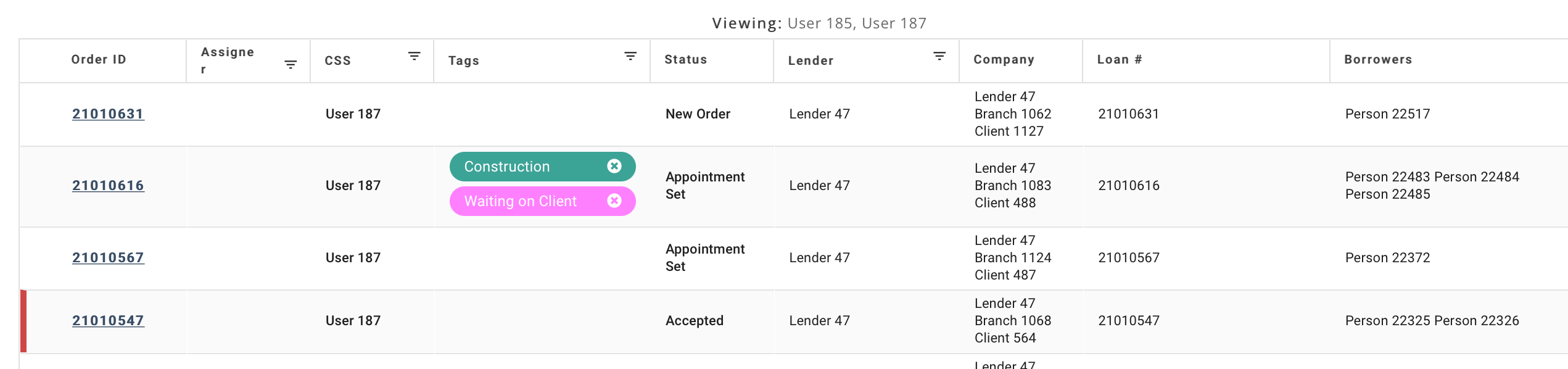
On the Dashboard screen, the Order Table displays select information about orders:
Column options include: Order ID, Assigner, CSS, Tags, Status, Lender, Company, Loan #, and Borrowers, among others.
The Order Table is customizable. You can display or hide any columns and save or export the results (Customizing and Saving Order Table Layout).
You can also filter the orders displayed (Filtering).
To open an order, click the Order ID number. Or, you can right-click anywhere on the order row to Add Tag or Open Order (see Order Screen and Order Workflow).
You can quickly recall an order you have recently been working on. To see your recently viewed orders, click the Recent Orders icon to the right of the Search bar:
The five most recent orders display:
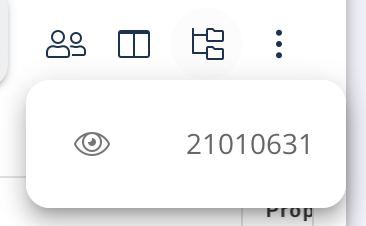
Click the order ID number or the eye icon to open the order (see Order Screen and Order Workflow).
See Also: Dashboard Introduction, Order Screen, Order Workflow