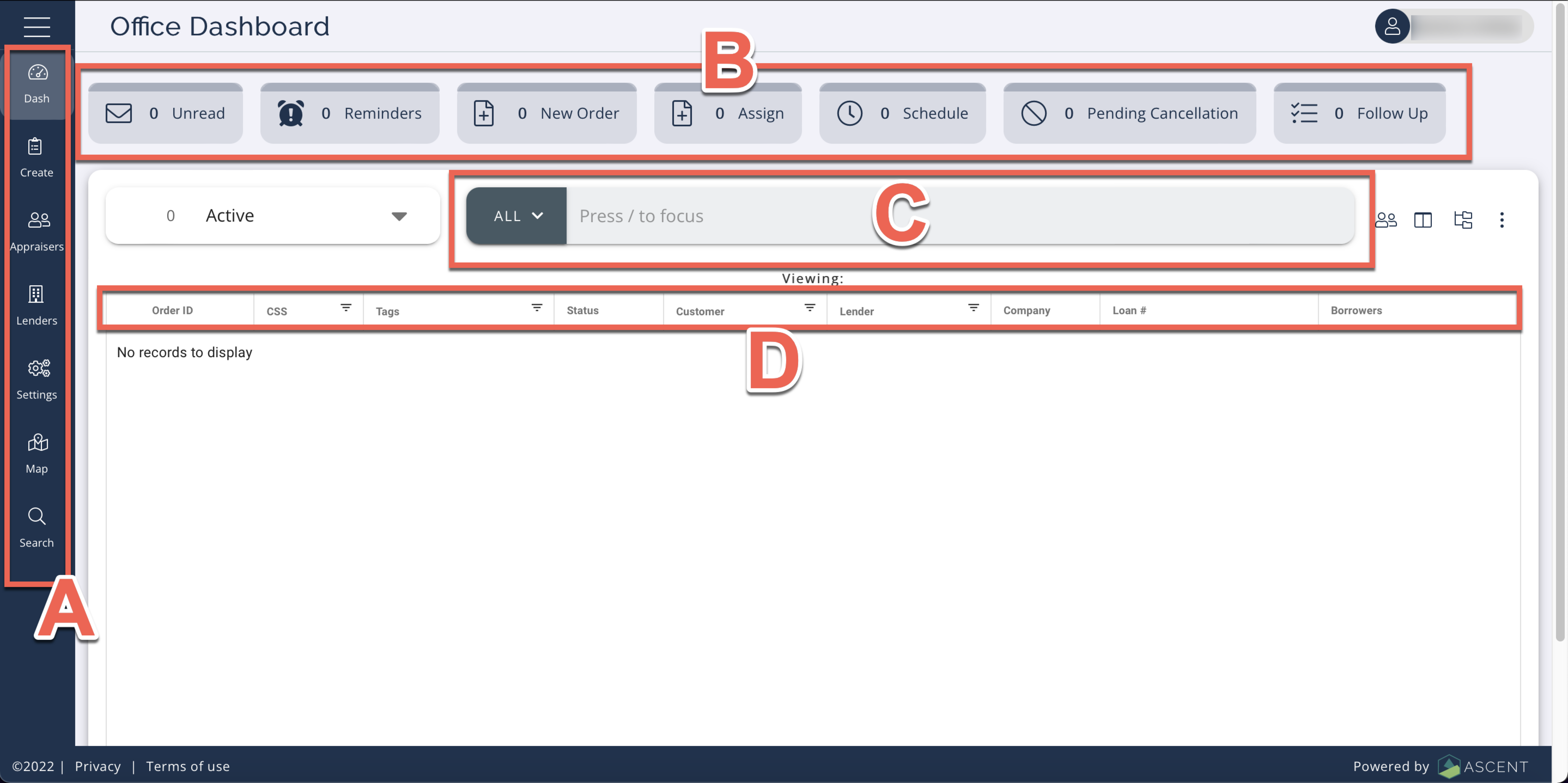
Upon login you will see your Dashboard screen:
Navigate to different screens using the Nav bar on the left (A).
At the top of the screen, you can use various Queue Tabs for easy access to specific orders (B). For example, you can see Unread messages, Reminders, Pending Cancellation, New Order and Follow Up. Click a tab to drill down to Queue Sub-tabs.
There is a Search bar near the top (C). You can also filter using the order Status Filter drop-down to the left of the Search bar.
In the center of the screen, you will see all a list of orders called the Order Table. You can filter the orders by several criteria (D). Each column can be moved and organized by clicking and dragging them in the order you would like them viewed or dragging to change the column width. To view an order, select the Order ID. Click the Columns icon next to the Search bar to select which columns display.
See Also: Dashboard Queue Tabs, Order Screen, Search, Order Workflow, Customizing and Saving Order Table Layout, Filtering, Viewing User Orders